
Building the map is the easy part. Getting it onto your own site, at the right size, without a scrollbar in the middle of the page or a mouse wheel that traps your visitors — that's where most embeds go wrong. Here's how to do it properly.
The short version
Every published Mapji map has an embed URL and a generated <iframe> snippet.
Copy it, paste it into your page, done. It works anywhere that accepts an HTML
embed: WordPress, Webflow, Squarespace, Ghost, Notion, or a hand-written page.
The rest of this guide is about the details that make the difference between an embed that looks bolted on and one that looks built in.
Step 1: Publish the map
An embed points at a published map. Every map is live at
mapji.com/map/your-map the moment you create it; you can add a free
yourmap.mapji.com subdomain or connect your own domain from Settings → Domains.
Step 2: Copy the embed snippet
In the site's settings, open the Embed section. You can set:
- Width — full width (100% of whatever container it sits in) or a fixed pixel value.
- Height — in pixels.
Full-width is almost always the right choice, because it lets your own page's layout decide how much room the map gets. Fixed pixel widths break the moment someone opens the page on a phone.
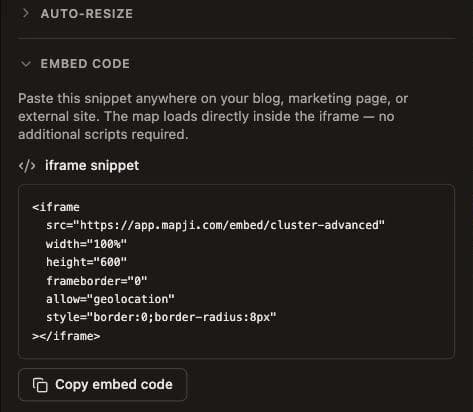
Copy the generated snippet and paste it into your page's HTML. In a block editor, that means an "Embed", "Custom HTML", or "Code" block rather than a paragraph.
The embedding reference lists every snippet option, including the border-radius presets and the fullscreen toggle.
Step 3: Fix the height problem
Height is the genuinely awkward part of any iframe. The parent page has no idea how tall the embedded content wants to be, so you guess a number, and it's wrong on some screen sizes.
Mapji ships an optional listener script alongside the snippet. With it on the page, the embed reports its content height to the parent and the iframe resizes to match — no inner scrollbar, no dead space below the map.
Add it once per page, after the iframe. It matches each message to the iframe it came from rather than to a particular map, so one copy handles every Mapji embed on the page — including two embeds of the same map.
If you'd rather not add a script, pick a height that works at your narrowest breakpoint and accept a little extra whitespace on desktop. For a plain map without a sidebar, a fixed height is perfectly fine.
Step 4: Stop the map hijacking the scroll
This is the most common complaint about embedded maps, and it's worth two minutes to get right.
By default, scrolling over a map zooms the map. If your map is a full-width band in the middle of a long article, a visitor scrolling down the page hits the map and suddenly finds themselves zoomed out over the Atlantic instead of reading your next paragraph.
Mapji lets you turn interactions off individually, and these settings apply to visitors rather than just the editor preview. For an in-article embed:
- Turn off scroll zoom. The page scrolls past the map as it should.
- Leave drag pan on, so people can still explore deliberately.
- Leave the zoom buttons on, so zooming is still possible — just intentional.
For a kiosk or a display screen, go the other way and turn everything off: scroll zoom, drag pan, rotation, double-click zoom, box zoom, touch gestures, and keyboard navigation can each be disabled independently, leaving a map that shows exactly the view you set. All seven are listed with their defaults in the interaction settings reference.
Step 5: Trim the widgets
Every widget you don't need is clutter at small sizes. You can toggle each of these on or off:
- Zoom buttons, compass, scale bar — on by default
- Locate me, fullscreen, minimap, export (image or PDF) — off by default
(The map widgets reference has the full list.)
In a narrow sidebar embed, zoom buttons alone are usually enough. Fullscreen is the one worth adding for a detailed map in a narrow column, since it gives people an escape hatch to see the whole thing.
What about SEO?
A common worry: does embedding a map somewhere else split my search ranking?
No — the dedicated embed URL is deliberately excluded from search engines, so it won't compete with the page you put it on. Your page is the one that gets indexed, which is the outcome you want.
Your published map on its own domain is crawlable, so if you want the map itself to rank as a destination, link to it directly as well as embedding it.
Troubleshooting
The map is blank or very short. The container has no height. An iframe needs an explicit height, or the resize script, or a parent with a defined height.
It looks cramped on mobile. Use a full-width embed rather than a fixed pixel width, and reduce the number of visible widgets.
The map traps my scroll. Turn off scroll zoom, as above.
My CMS strips the iframe. Some hosted platforms block raw HTML on lower plans. Look for a dedicated Embed block, which usually accepts a URL directly.
Putting it together
For most people, the good default is: full width, resize script on, scroll zoom off, zoom and fullscreen widgets on, everything else off. That gives an embed that fills its column, sizes itself correctly, doesn't fight the page, and still lets people explore when they want to.
Build a map to embed — it's free to start.