
Addresses and domains
Your map's mapji.com address, an optional free subdomain, and how to connect a domain you own.
Every map has an address on mapji.com from the moment it is created. You can change it, give the map a free subdomain, or serve it on a domain you own. All three are managed under Map settings → Domains, and each saves on its own.
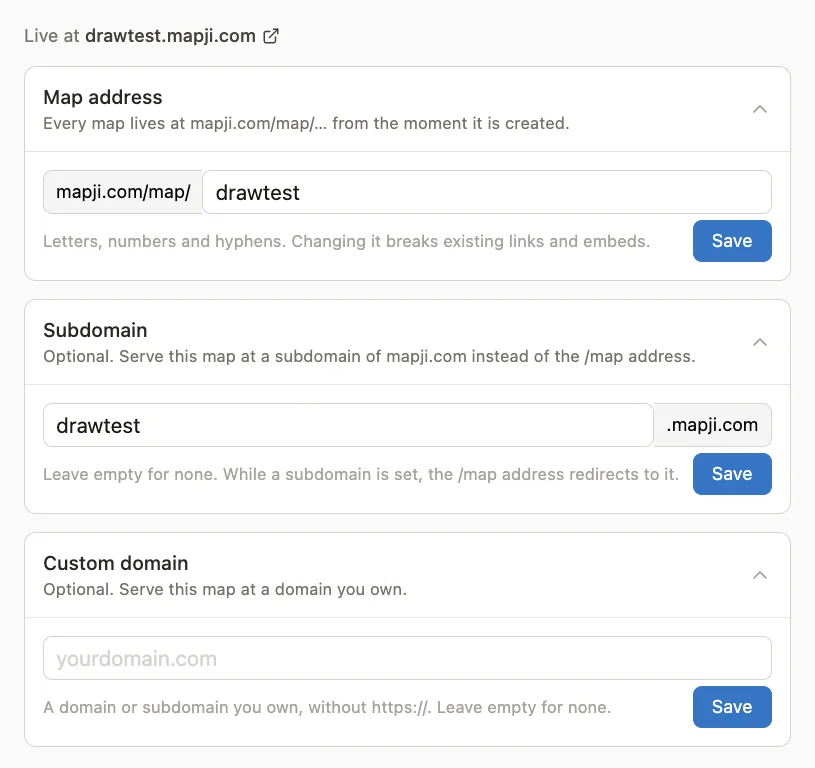
The three addresses
| Address | Example | When it exists |
|---|---|---|
| Map address | mapji.com/map/coffee-shops-in-lisbon | Always. Created from the map's name when you create it. |
| Subdomain | coffee.mapji.com | When you set one. Free. |
| Custom domain | maps.example.com or example.com | When you connect a domain you own. |
The top of the Domains tab shows the map's main address, and Preview opens the published map.
Map address
The part after mapji.com/map/ is the map's address. It was made from the map's name when you created it; if that address was already taken, a number was added, such as -2.
To change it, edit Map address and save. It can be up to 63 characters of letters, numbers and hyphens, and is saved in lowercase.
Changing the map address breaks every link and embed that uses the old one. Mapji asks you to confirm first. The old address is not redirected.
Subdomain
Set Subdomain to serve the map at your-name.mapji.com. It follows the same rules as the map address (up to 63 letters, numbers and hyphens), must not be taken by another map, and a list of reserved names — common words such as app or www, and well-known brand names — cannot be used.
While a subdomain is set, the mapji.com/map/… address redirects to it, so existing links keep working. Clear the field and save to remove the subdomain; the map is then served at its map address again.
Custom domain
You can serve a map on a domain or subdomain you own, such as example.com or maps.example.com.
Enter the domain
Type it into Custom domain in lowercase, without
https://, and save. The field accepts letters, numbers, hyphens and dots, ending in a domain ending of two to five letters such as.comor.co.uk.Add the DNS record
Under the field, the Domains tab shows the record to add at your domain registrar or DNS provider. For a root domain such as
example.com, use the A Record tab. For a subdomain such asmaps.example.com, select the CNAME Record tab — it is marked (recommended) — because the tab opens on the A record. Copy the type, name and value exactly as shown.Prove ownership if asked
If the domain is already in use elsewhere on the hosting platform, the tab shows Pending Verification and a TXT record instead, to prove you own the domain. Add it, and the DNS record appears once ownership is confirmed.
Wait for it to connect
The icon beside the domain re-checks every few seconds. When it turns into a blue check and the instructions disappear, the domain serves your map. DNS changes can take up to an hour to spread.
| What you see | Meaning |
|---|---|
| A blue check | The domain is set up and serves the map |
| An amber icon and Pending Verification | Add the TXT record shown, to prove you own the domain |
| A red icon and Invalid Configuration | The DNS record is missing or points somewhere else |
| A red icon and an error message | The hosting platform reported a problem with the domain |
| A red icon on its own | The domain's status couldn't be checked. Reload the page after a minute; if it stays, contact us. |
The address at the top of the tab switches to the custom domain as soon as you save it, even before the DNS record works; until it does, use the map's mapji.com address.
Connecting a custom domain does not remove the map's other addresses. The mapji.com/map/… address keeps serving the map, and redirects to the subdomain if you have one.
Signed in as the owner, you can open your own password-protected map without the password on its mapji.com addresses, but not on a custom domain. See Public, unlisted and password maps.