
Embedding a map
Put a map inside another website with an iframe, and how the map behaves once it is embedded.
You can put any map inside another website — a blog post, a company page, a site builder such as WordPress or Webflow — with a standard iframe. Copy the code from Map settings → Embed, paste it into the page, and the map loads inside it. No script is needed.
Get the embed code
Open the Embed tab
In the map editor, select Map settings in the header, then the Embed tab.
Set the size and style
Choose the width and height, the corner rounding, and whether the map may go fullscreen. The code updates as you change them.
Copy the code
Select Copy embed code and paste it into your page's HTML.
| Setting | Options | Default |
|---|---|---|
| Width | Full (100%) of the space on your page, or Fixed at 200–3840 px | Full (100%) |
| Height | 200–2000 px | 600 px |
| Border radius | None, sm, md, lg, xl (0, 4, 8, 16 or 24 px) | md (8 px) |
| Allow fullscreen | Adds the allowfullscreen attribute, so the Fullscreen widget can fill the screen from inside the frame. Turn the widget on under Widgets too. | Off |
You can leave Auto-resize off. An embedded map always fills its frame, at the height you set.
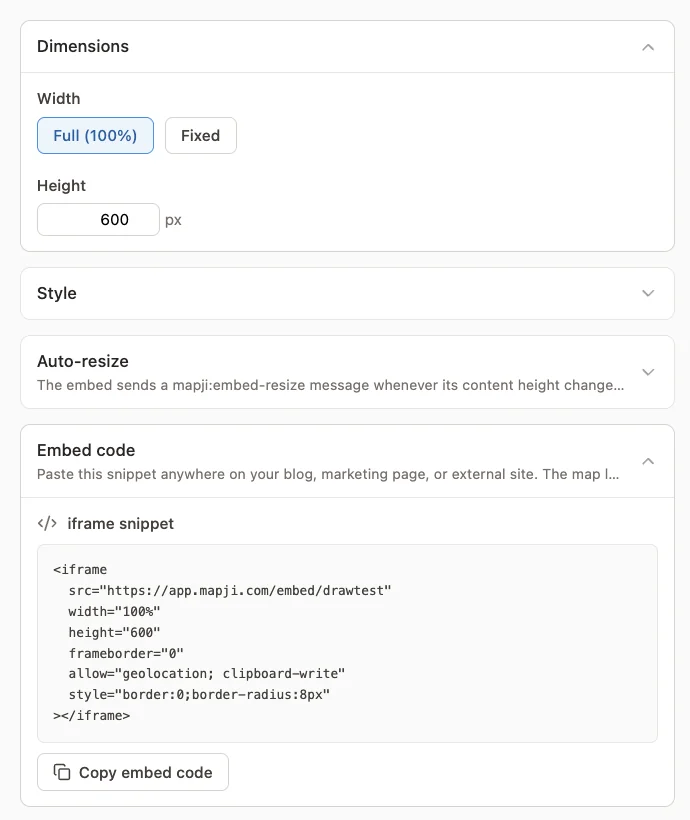
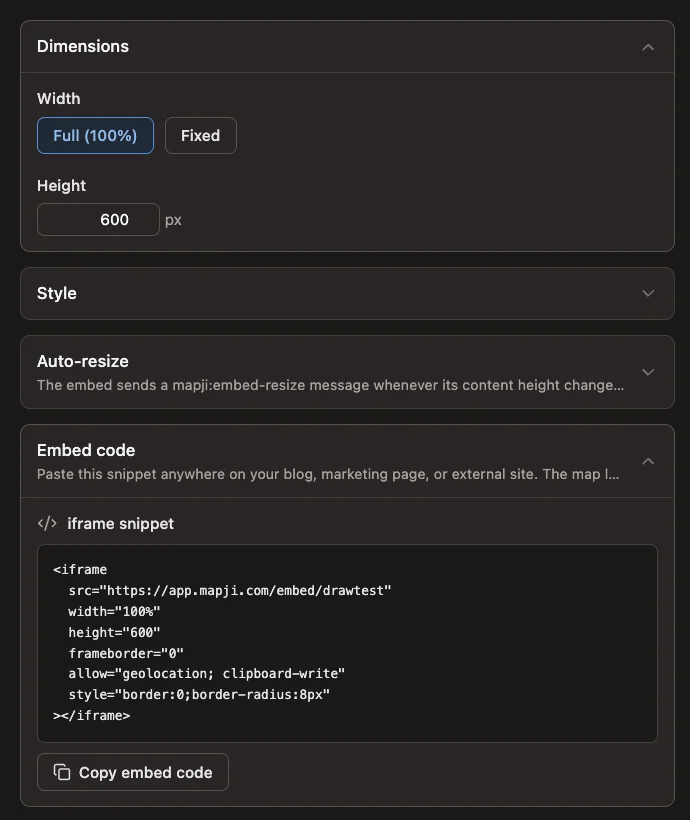
The code looks like this:
<iframe
  src="https://app.mapji.com/embed/coffee-shops-in-lisbon"
  width="100%"
  height="600"
  frameborder="0"
  allow="geolocation; clipboard-write"
  style="border:0;border-radius:8px"
></iframe>
The allow attribute lets the Locate Me widget ask for the visitor's location, and lets popups copy a link, from inside the frame. Keep it when you paste the code.
What changes inside an embed
An embedded map is the published map itself, filling the frame:
- It shows the saved version of the map, like every visitor. Unsaved changes in the editor never appear.
- Interactions, widgets, popups, search, the legend and the opening view all work as on the full page.
- A Crowdsourced Map's submission form opens inside the frame.
- A password-protected map asks for the password inside the frame first. See Password maps in an embed.
A map that fills only part of a long page can capture the scroll wheel as visitors scroll past it. If that gets in the way, turn off Scroll Zoom under the map's Interactions button and save; visitors can still zoom with the buttons. See Interactions and widgets.
The embed code points at the map's address. If you change the address under Map settings → Domains, update the code everywhere it is embedded.
Embeds and search engines
Embeds ask search engines not to index them, so search results always point at the map's own address rather than at the frame. Whether that address can be listed depends on the map's access setting — see Public, unlisted and password maps.