Map settings
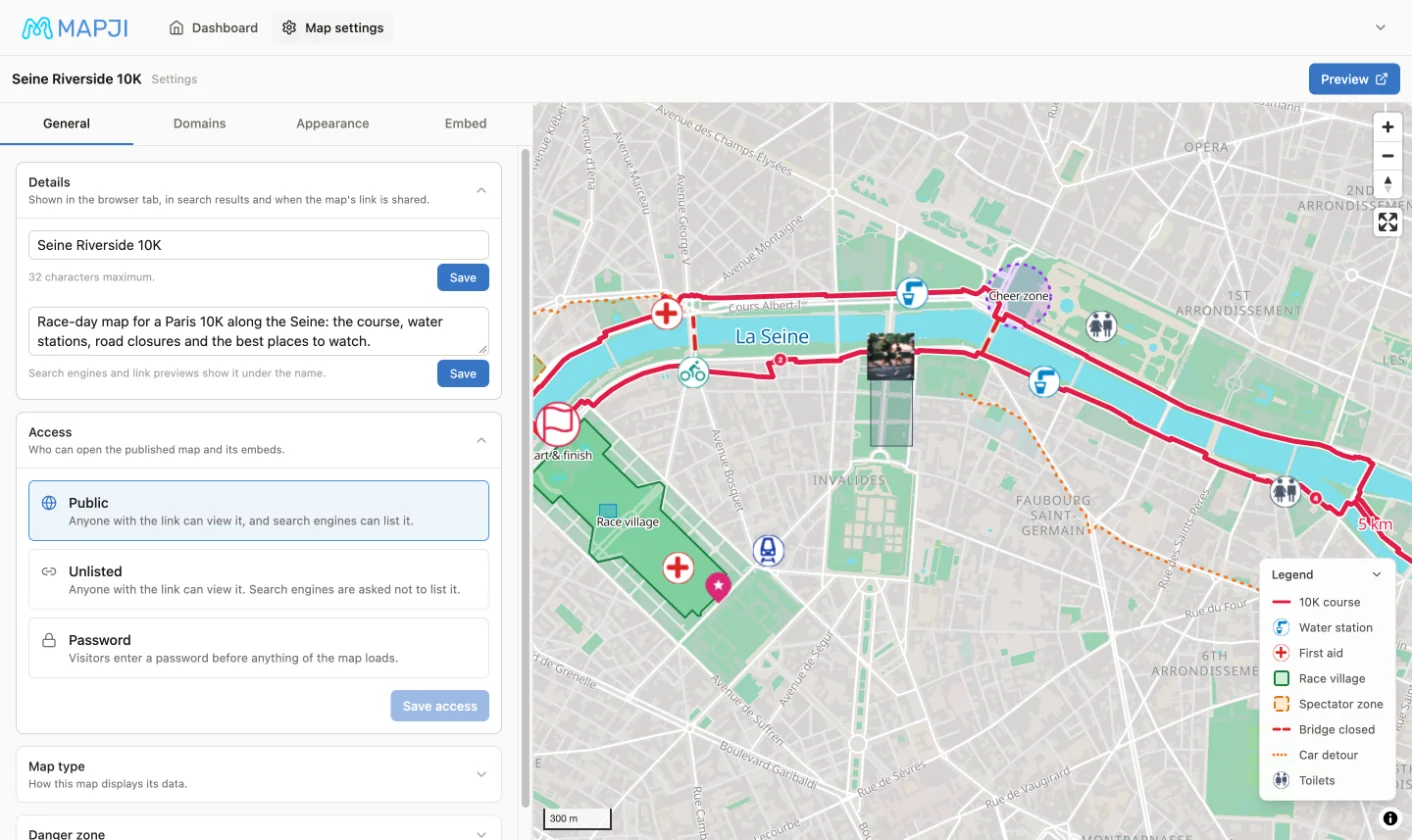
The settings page for a map: its name and description, map type, share image, browser icon, and deleting the map.
The settings that belong to the map as a whole, rather than to how it draws its data, live on a page of their own. Open a map in the editor and select Map settings in the header at the top of the page.
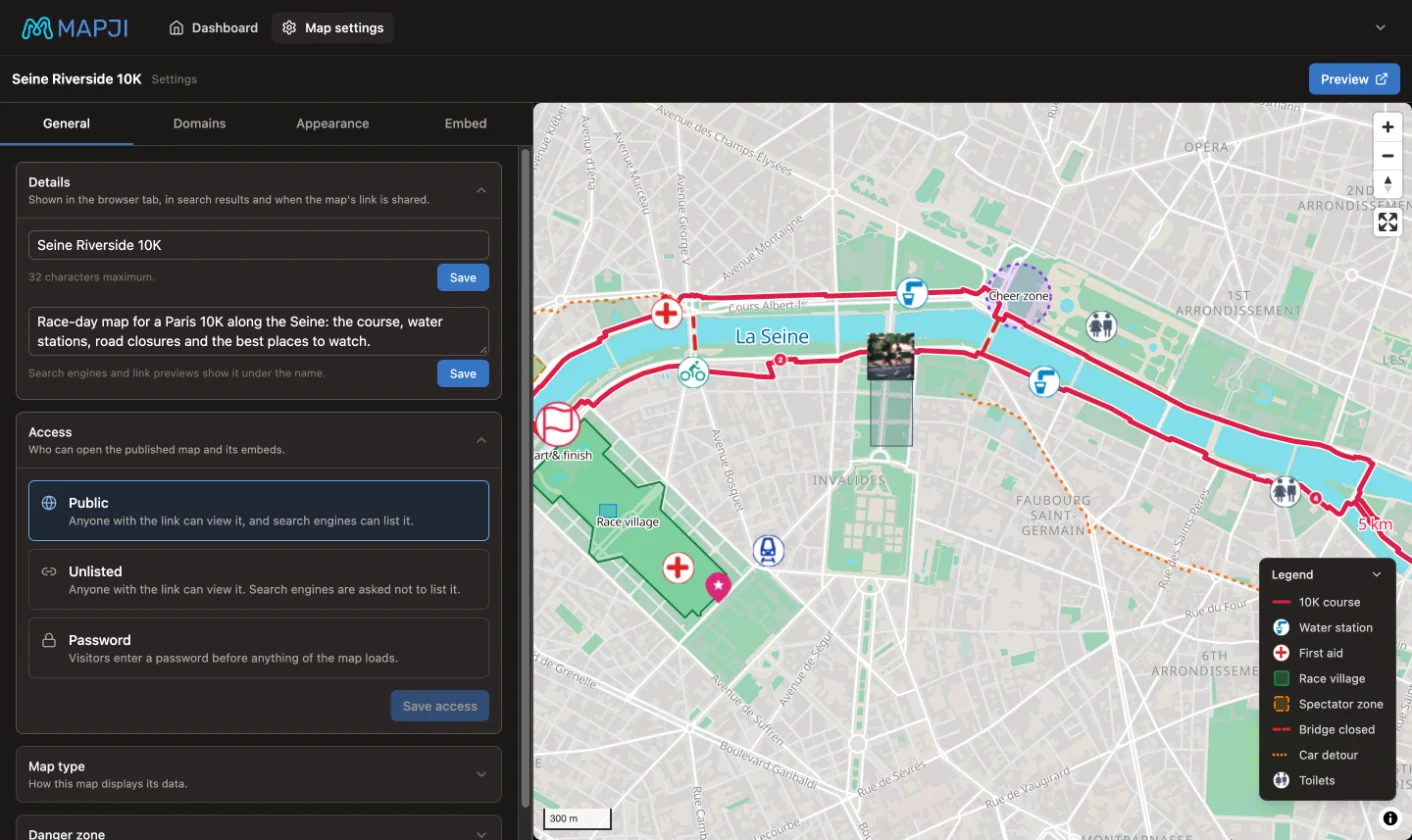
The page has four tabs — General, Domains, Appearance and Embed — and a live preview of the map beside them. Preview at the top opens the published map in a new tab.
Each section is saved on its own, with its own button — Save in most sections, Save access for access. None of it waits for the editor's Save.
General
Details
The map's name and description. They appear in the browser tab, in search results and when the map's link is shared.
- The name can be up to 32 characters.
- The description is optional. Search engines and link previews show it under the name.
Access
Who can open the published map: Public, Unlisted or Password. See Public, unlisted and password maps.
Map type
Switches the map to another of the ten types. Mapji asks you to confirm before it changes. Nothing is deleted, but whether your data shows depends on the two types — see Changing the map type later.
Danger zone
Deletes the map. Type the map's name to confirm, then select Delete.
Appearance
| Setting | What it is | Format |
|---|---|---|
| Social share image | The picture shown when the map's link is shared in social media or chat apps, and on the map's card in your dashboard | PNG or JPEG, up to 10MB; 1200×630 pixels recommended |
| Browser tab icon | The small icon in the browser tab next to the map's name | PNG or JPEG, up to 10MB; use a square image |
Until you upload a share image, the editor keeps one up to date with a screenshot of your map. Once you upload your own, it is never replaced automatically.
Domains and Embed
- Domains changes the map's
mapji.com/map/…address and adds a subdomain or your own domain. See Addresses and domains. - Embed builds the code for putting the map inside another website. See Embedding a map.
Deleting a map
To delete a map, open General → Danger zone on this page, type the map's name, and select Delete.
Deleting a map cannot be undone. It removes the map with its data and visitor submissions, deletes its share image, browser tab icon, Store Locator logo and submission photos, disconnects its custom domain, and stops its links and embeds from working straight away.