
Opening view
Decide where the map opens: fitted to your data, or pinned to an exact center, zoom, bearing and tilt.
On this page
By default a map opens fitted to its data: whatever you imported decides where the camera starts. (A Crowdsourced Map opens on its submission area, and a Story Map on its first chapter.) That is usually right. It goes wrong when one stray point zooms a national map out to the whole world, or when a map about one neighborhood should not re-frame itself every time the data changes. Pinning the opening view fixes the camera.
Lock the view from the status bar
Frame the map
Pan, zoom, rotate and tilt the map in the editor until it shows what visitors should see first.
Select Lock view
Lock view is at the left of the status bar under the map. It captures the current center, zoom, bearing and tilt, and changes to View locked.
Save
The locked view is saved with your other changes. From then on the editor, the published map and every embed open exactly there.


If you move the map after locking, Update to current appears next to the lock and moves the pinned view to where you are. Select View locked to unlock; the map goes back to opening fitted to its data.
Fine-tune the numbers
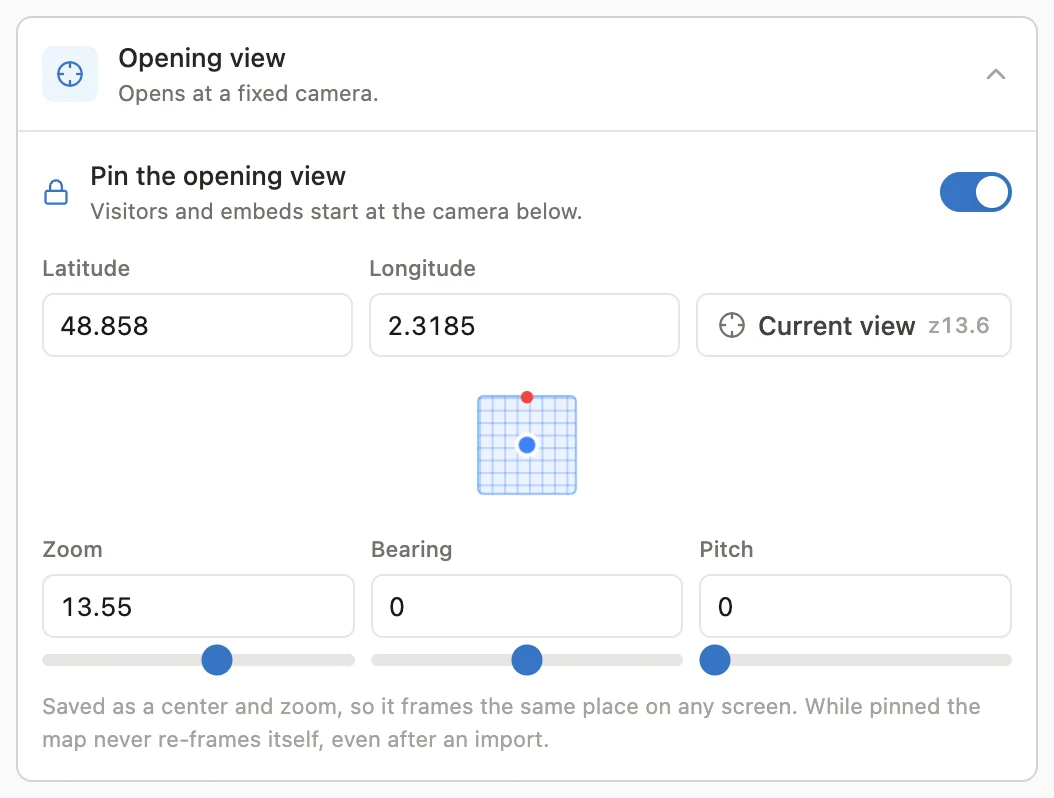
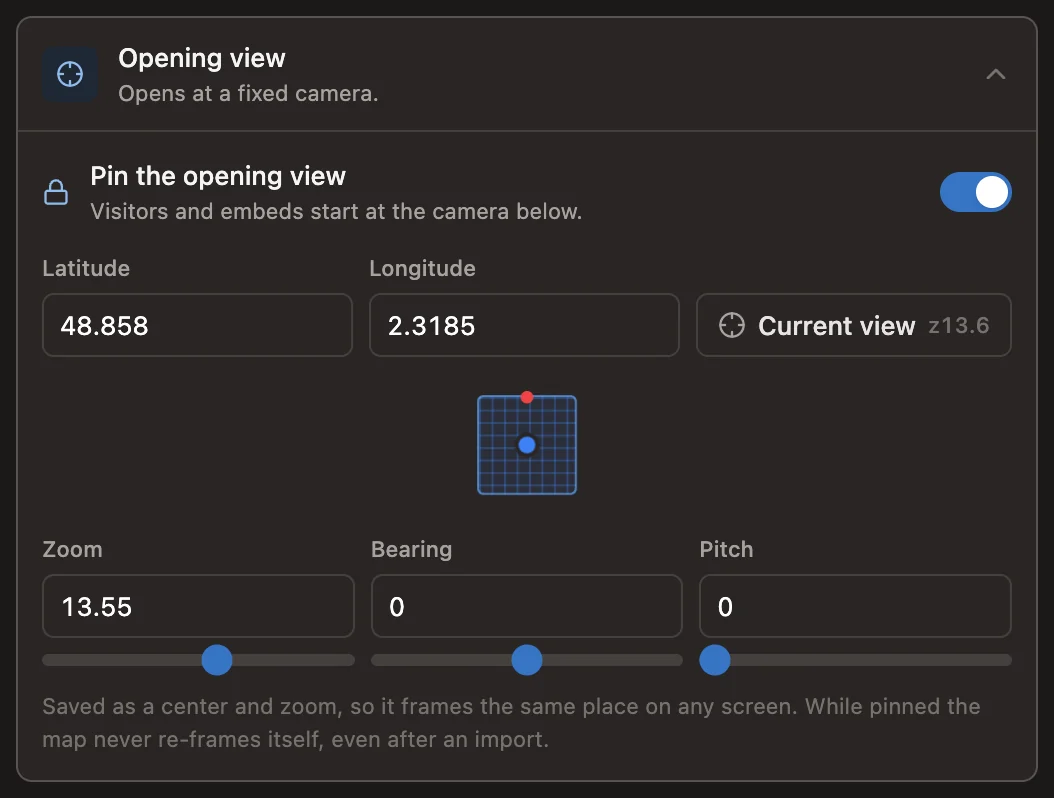
Every map type except Story Map has an Opening view section in its Settings tab (on a Crowdsourced Map it is in the Display tab). Switch on Pin the opening view to see and edit the camera:
| Field | Range |
|---|---|
| Latitude | −90 to 90, in decimal degrees |
| Longitude | −180 to 180, in decimal degrees |
| Zoom | 0 to 24 |
| Bearing | −180° to 180°; 0 is north up |
| Pitch | 0° to 85°; 0 looks straight down (the status bar calls this Tilt) |
Type the latitude and longitude, or select Current view to take the whole camera — center, zoom, bearing and pitch — from the map as it is now. Zoom, bearing and pitch each have a slider, and a small dial previews all three.
What a locked view changes
A locked view turns off every automatic camera move, including the re-fit after an import. If you import new data and the map seems to ignore it, the lock is why: unlock, or select Update to current once you have framed the new data.
Moves that someone asks for still work: selecting a feature in the sidebar's list, a visitor choosing a search result, or a link to one feature all fly to it.
Story Map has no lock
A Story Map's chapters each set their own camera, so a fixed opening view would be overridden by the first chapter. Its status bar still shows the readouts, which are handy when you set up each chapter's camera. See Story Map.